A budget that nobody enforces is just a spreadsheet. Availability control (AVC) is what turns a plan into a guardrail: at the moment someone tries to raise a purchase order or post a cost, SAP compares the running total against the budget and decides whether to wave it through, warn, or stop it cold.
This guide is deliberately visual. It covers the mechanics of the check, then the two places you'll configure it — internal orders (the long-standing budget-profile approach) and cost centers (the newer, app-driven model in S/4HANA).
In one line: AVC checks assigned value (commitments + actual costs) against the available budget every time you post — and reacts according to your tolerance limits.
How the Check Actually Works
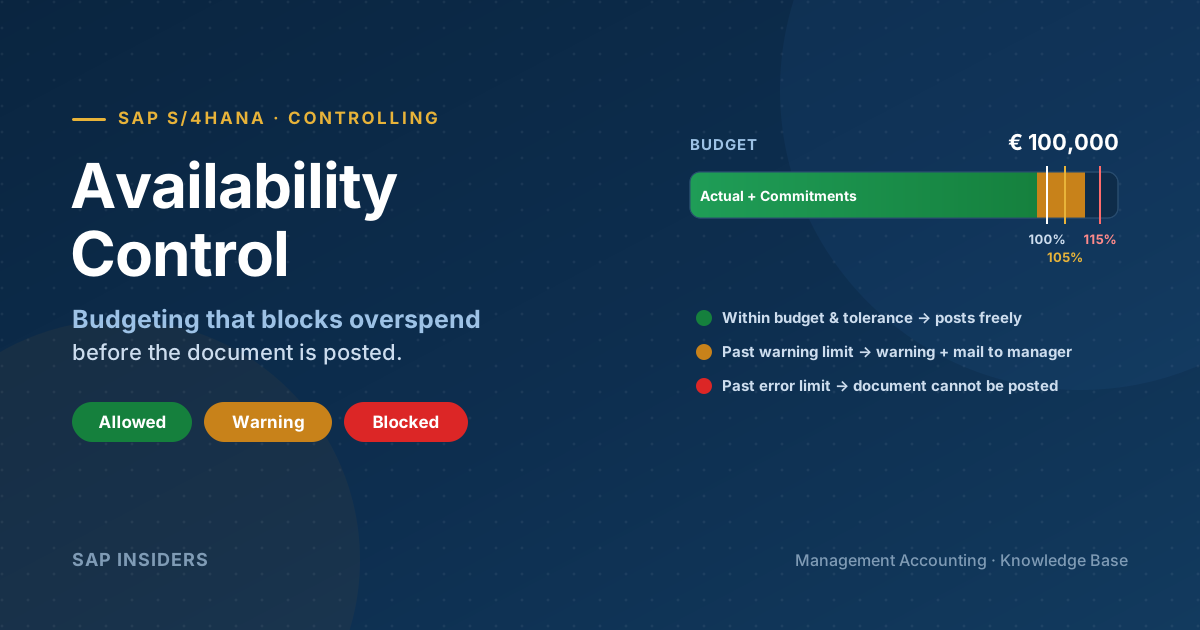
The engine compares two numbers. On one side sits the budget. On the other sits the assigned value — everything already spoken for, which means actual costs plus open commitments. Each new document adds to the assigned value and triggers a check. Where that total lands against your tolerance limits decides what happens next.
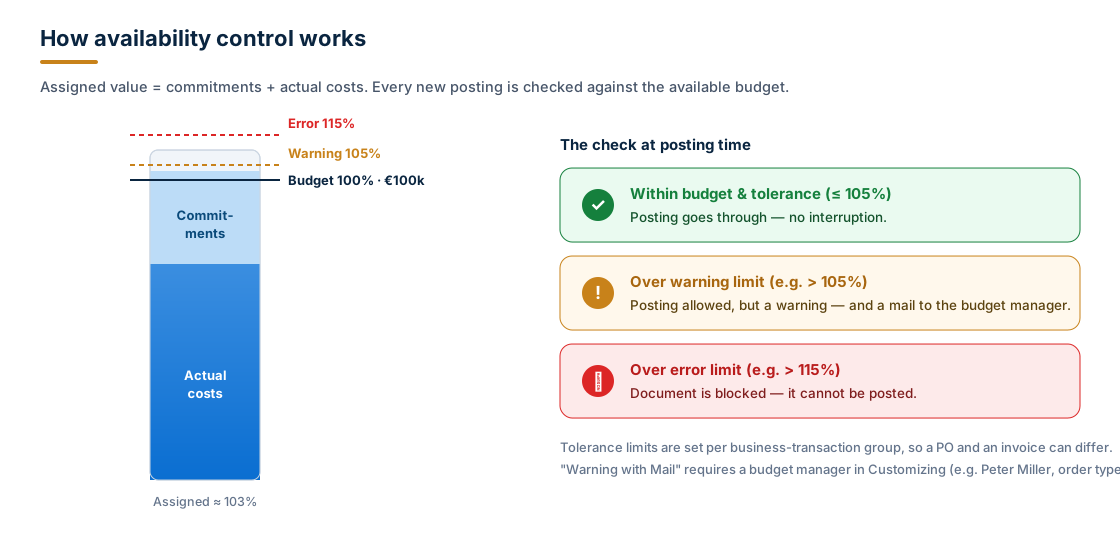
Three outcomes, set per business-transaction group so a purchase order and an invoice can behave differently:
- Allowed — within budget and tolerance; the document posts with no fuss.
- Warning — past the first threshold; the posting still goes through, but the system flags it. Choose "Warning with Mail" and it also emails a named budget manager (defined in Customizing per order type and object class — e.g. Peter Miller for order type 0100, class OCOST). No manager defined? You get an error instead.
- Error — past the upper threshold; the document is rejected and cannot be posted.
Why Commitments Are the Whole Point
Plenty of teams watch actuals and wonder why they still overrun. The reason is timing: money is committed long before the invoice lands. A purchase order creates a commitment — an obligation that will become an actual cost later, via goods receipt and invoice receipt. AVC counts that commitment immediately, so the budget is protected at the point of ordering, not weeks later at settlement.
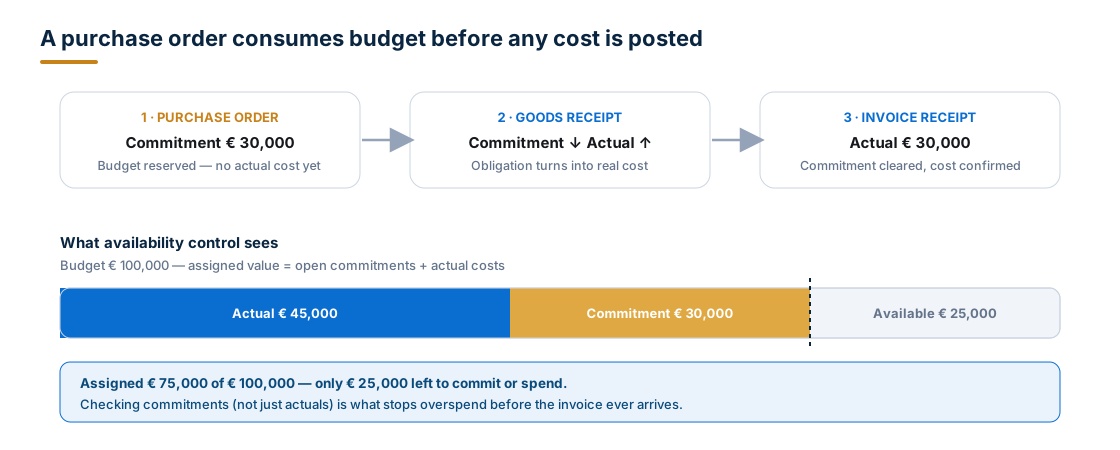
That single behaviour — checking commitments, not just actuals — is what makes AVC preventive rather than merely descriptive.
Budget Types and the Adjustments You'll Make
The figure your colleagues approve is the original budget. Real life then intervenes, so SAP gives you three levers — supplement (top up), return (give back), and transfer (move funds between objects). The original plus every update is the current budget, and each change is written as a documented line item you can annotate.
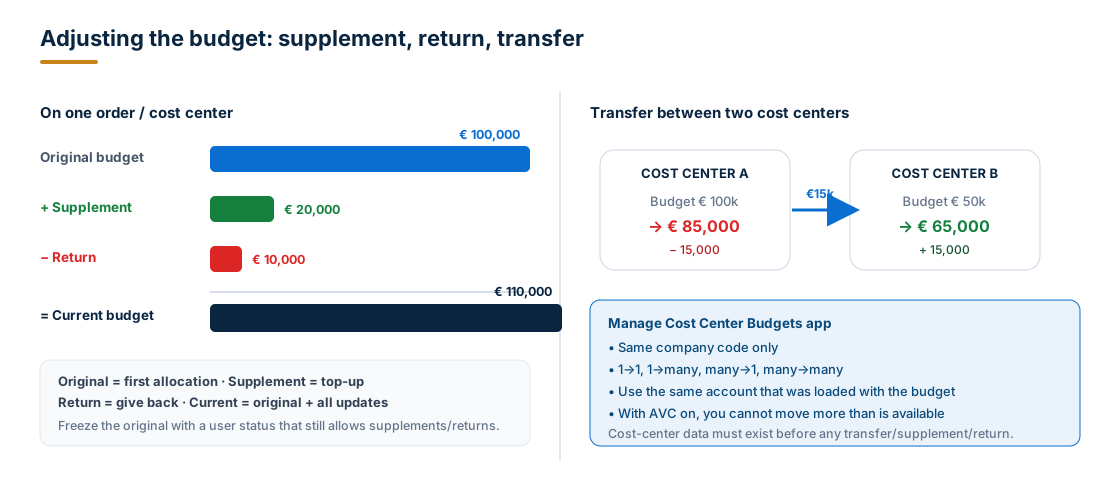
A neat governance trick: once the original is signed off, freeze it with a user status that forbids the budgeting transaction yet still permits supplements and returns — so the headline number is locked while day-to-day adjustments stay possible.
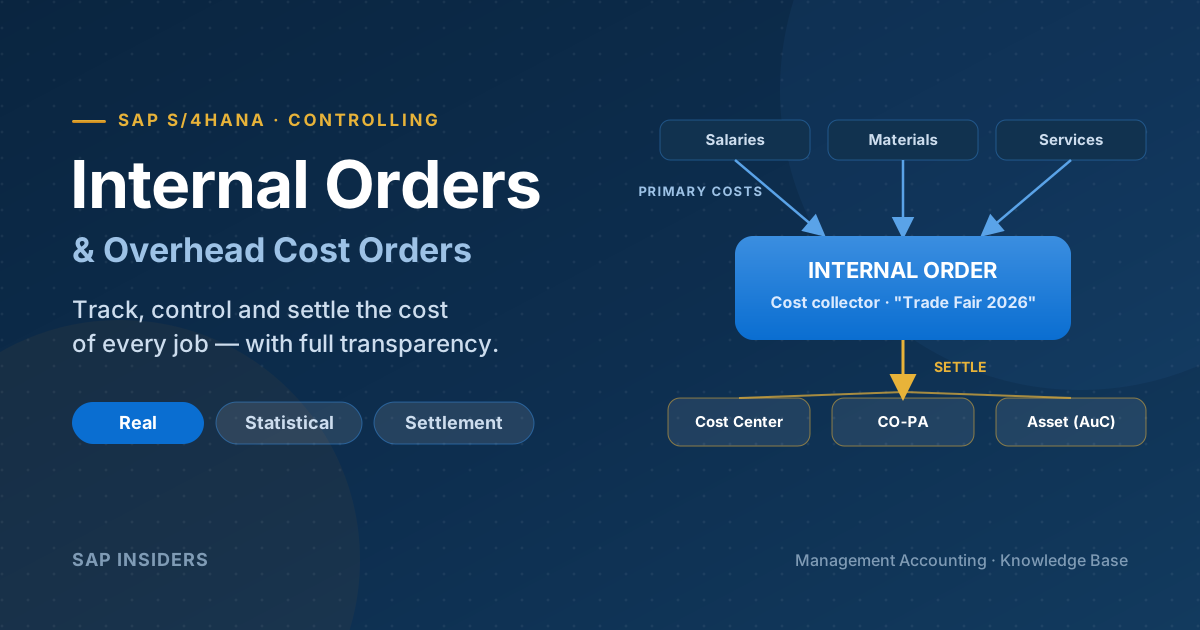
Availability Control for Internal Orders
Orders use the classic mechanism. You build a budget profile, attach it to the order type, capture figures with Maintain Original Budget (KO22), and let the check run against postings. The profile is where every parameter lives.
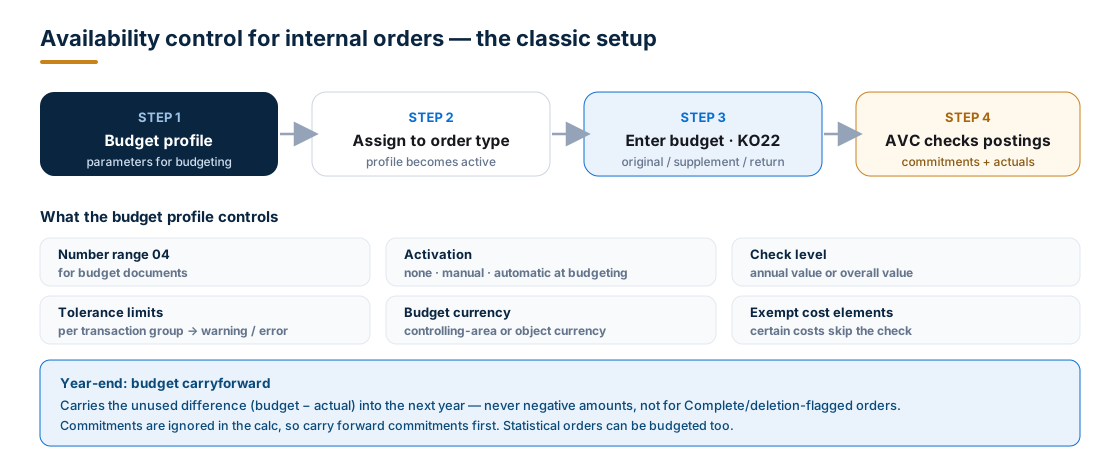
A few specifics worth remembering:
- Number range 04 is reserved for budget documents — set it in Customizing.
- Activation is your choice: never, manual from the menu, or automatic during budgeting.
- The check can target the annual value or the overall value of the order.
- When you save, the system insists the sum of annual values equals the overall value.
- Statistical orders can be budgeted and controlled exactly like real ones.
- Multinational? Enter figures in the controlling-area or the object currency; SAP stores both automatically.
Year-end carryforward
Unspent money needn't evaporate on 31 December. Budget carryforward moves the unused difference (budget minus actual) into the new year. The rules: never a negative amount, never for orders flagged Complete or for deletion, and you may run it repeatedly — each pass carries only what's still outstanding. Because the calculation ignores commitments, carry your commitments forward first.
Availability Control for Cost Centers in S/4HANA
Cost centers take a different, more modern route. The budget is no longer a separate table — it's a plan category in ACDOCP, and the whole flow is driven by Fiori apps.
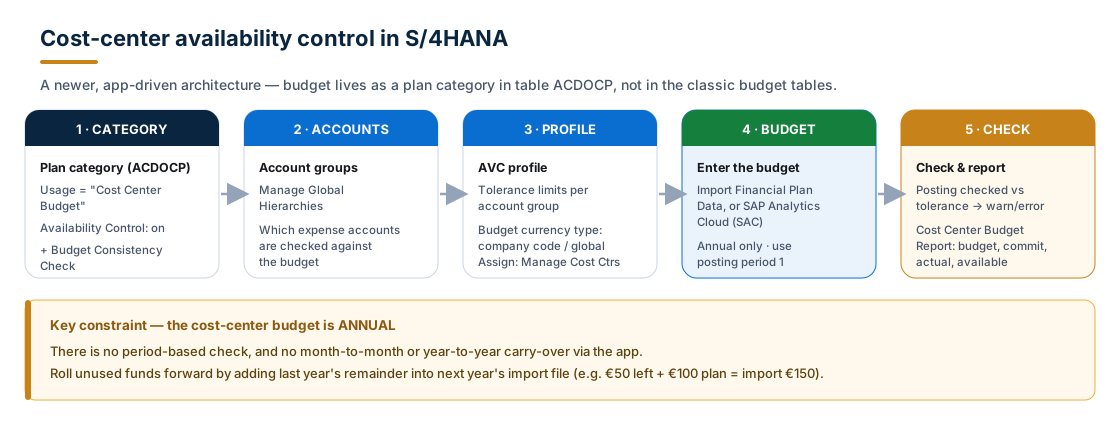
The building blocks:
- Plan category — mark its usage as "Cost Center Budget" (not "No specific usage") and switch on Availability Control. Once a category is in use, it's fixed.
- Account groups — defined in Manage Global Hierarchies and linked to the profile; only postings to those accounts are checked.
- AVC profile — holds the tolerance limits (per account group, and per activity group) and the budget currency type (company-code or global currency). You assign it through Manage Cost Centers. Profiles can't be deleted — to change anything beyond tolerances and currency, create a new one and reassign.
- Budget entry — load it with Import Financial Plan Data or from SAP Analytics Cloud.
- Check & report — the posting is validated, and the Cost Center Budget Report shows budget, commitments, actuals, and what's left.
The consistency (deficiency) check
Switch on the Budget Consistency Check and SAP guards against under-funding in two situations: when you enter or change a budget mid-year that's already below the actuals posted to that cost center, and when you reassign a cost center to a higher-level budget cost center whose budget is too small for the costs already booked. Either way, you get an error before the gap can hide.
One constraint to plan around
The cost-center budget is annual only — there is no period-level check, and no automatic month-to-month or year-to-year carry-over through the app. To roll funds forward, fold last year's remainder into next year's import file (e.g. €50 left + €100 planned → import €150). A period-based check does exist, but in Funds Management, via its Release function.
One Budget, Several Cost Centers
You don't need a budget on every cost center. Nominate a budget-bearing cost center, enter the budget there, and point the subordinate cost centers at it in their master records. Their postings then draw down the shared pot together.
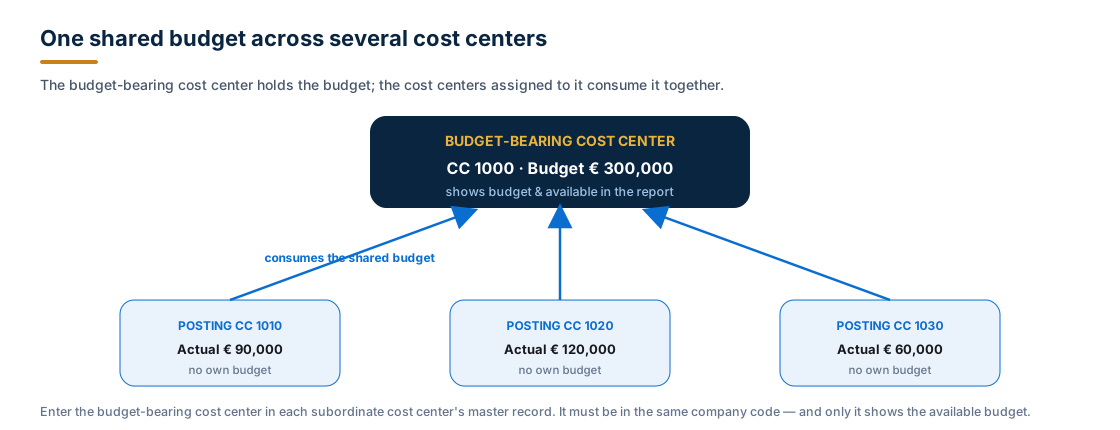
Two rules apply: every participant must sit in the same company code, and only the budget-bearing cost center displays the budget and remaining funds in the report.
Entering and Checking the Budget
Loading the cost-center budget is a data exercise, and a couple of file details trip people up:
- Include a posting period even though the budget is annual — SAP recommends period 1, which reporting also uses. Load it into period 8 and your half-year report simply won't see it.
- List every account from the G/L hierarchy built for budgeting.
- Re-importing with the same parameters replaces the prior data rather than adding to it.
At posting time the behaviour matches the tolerance settings: exceed the warning threshold (say, over 5% but under 10%) and you get a warning; cross the error threshold (over 10%) and the document is blocked. The overrun is computed on the fly, not stored. Throughout, the Cost Center Budget Report is your single pane of glass for budget, commitments, actuals, and availability.
Transferring, Supplementing, and Returning
Day-to-day adjustments for cost centers run through the Manage Cost Center Budgets app — the same place you supplement, return, and transfer. Transfers flow in any shape (one-to-one, one-to-many, many-to-one, many-to-many) as long as both ends share a company code and the budget uses the same account it was loaded with. With AVC active, you can never move more than is actually available, and the cost centers must already exist before any adjustment.
Internal Orders vs. Cost Centers: AVC at a Glance
| Internal Orders | Cost Centers (S/4HANA) | |
|---|---|---|
| Where the budget lives | Classic budget tables | Plan category in ACDOCP |
| Configured via | Budget profile on the order type | Plan category + AVC profile, Manage Cost Centers |
| Budget entry | KO22 (original/supplement/return) | Import Financial Plan Data / SAC |
| Check level | Annual or overall | Annual only (no period check) |
| Scope of check | Order, by transaction group | Account groups per cost center |
| Carryforward | Built-in carryforward run | Manual — fold into next import |
| Shared budget | — | Budget-bearing cost center |
| Adjustments | KO22 | Manage Cost Center Budgets |
Best Practices
- Watch commitments, not just actuals. The PO is where overspend begins; let AVC catch it there.
- Tune tolerances by transaction. A soft warning on requisitions and a hard error on invoices is a sensible default.
- Always name a budget manager before choosing "Warning with Mail" — otherwise the warning silently becomes an error.
- Freeze the original, allow updates. Lock the approved figure with a user status that still permits supplements and returns.
- Standardise the load file. Period 1, the right accounts, and a repeatable layout prevent most cost-center import surprises.
- Plan the year-end deliberately. Orders carry forward; cost centers don't — build the remainder into next year's import.
- Use a budget-bearing cost center to govern a group of related cost centers from one pot.
Summary & Key Takeaways
- AVC compares assigned value (commitments + actuals) to the available budget at every posting, and reacts via tolerance limits: allow, warn (optionally with mail), or block.
- Internal orders rely on a budget profile assigned to the order type, with KO22, annual/overall checks, currency options, and a carryforward run.
- Cost centers in S/4HANA budget through a plan category in
ACDOCP, an AVC profile scoped by account groups, and loading via Import Financial Plan Data / SAC — strictly annual. - Adjust with supplement, return, and transfer; a budget-bearing cost center shares one budget across many.
- The Cost Center Budget Report is your live view of budget, commitments, actuals, and availability.
Configured well, availability control quietly does the most valuable thing in cost management: it says "no" at exactly the right moment — before the money is gone.